

Although Google does not offer a button to disable this feature, there are several tricks to bypass or remove AI Overview.
This tutorial guides you step by step, whether you are on PC, mobile, or even in an enterprise environment. Follow the guide!
What is AI Overview?
AI Overview is a Google feature that displays an AI-generated summary at the top of search results. Practical for some, it can be inaccurate, cluttered, or simply unwanted. Here is how to disable or bypass it.
Methods to disable AI Overview
1. Use the “Web” Filter in Google
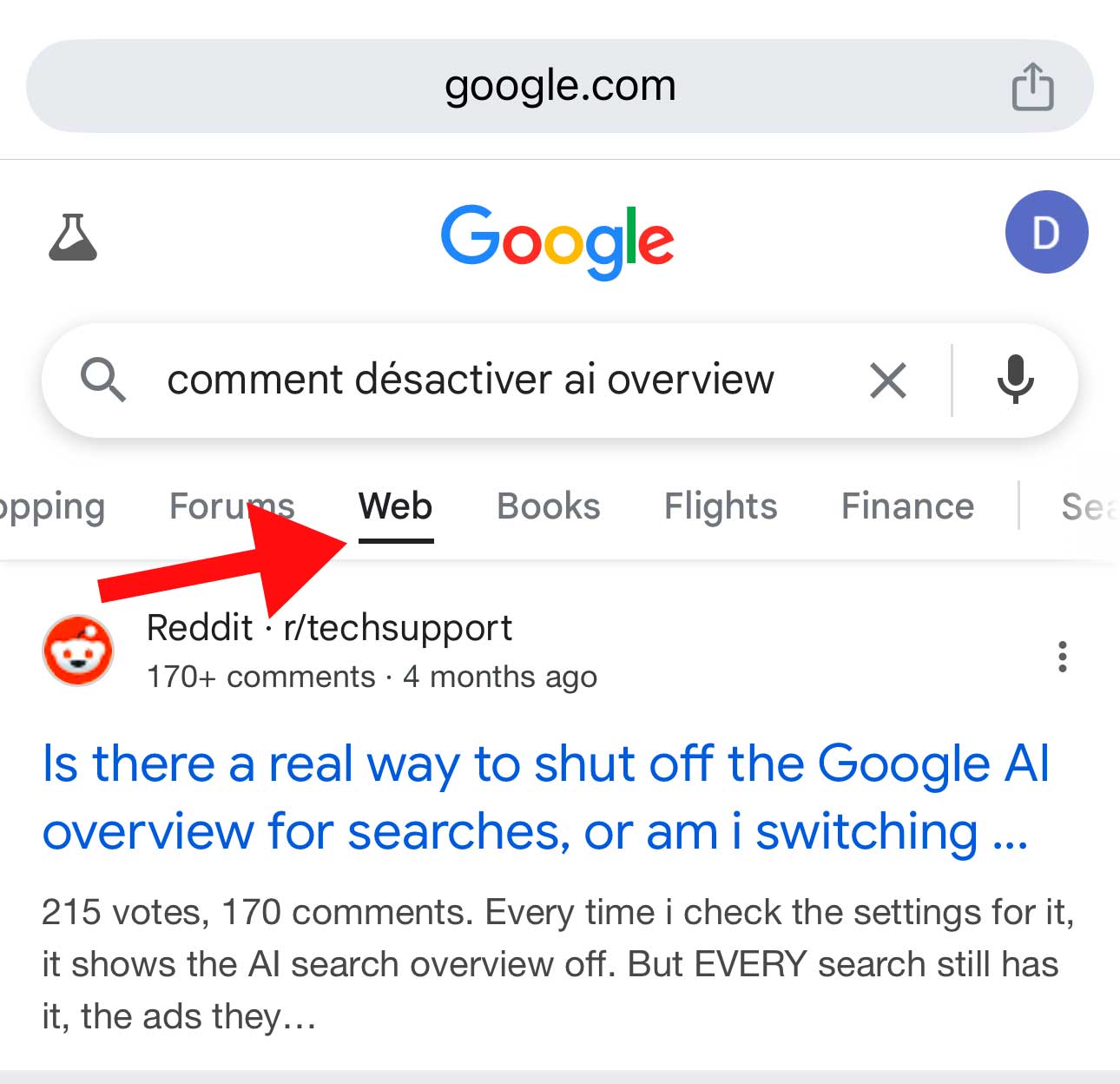
The simplest method, accessible on all devices, is to use the “Web” tab to display results without AI Overview.
- Perform a search on Google.
- At the top of the results, look for the “Web” tab (sometimes under “More” if not visible).
- Click on “Web” to see only traditional links, without an AI summary.
2. Set up a custom search engine on Chrome (PC)
To automatically remove AI Overview on Chrome, set up a search engine with the udm=14 parameter.
- Open Google Chrome.
- Click on the three dots in the top right > Settings.
- Go to Search engine > Manage search engines and site search.
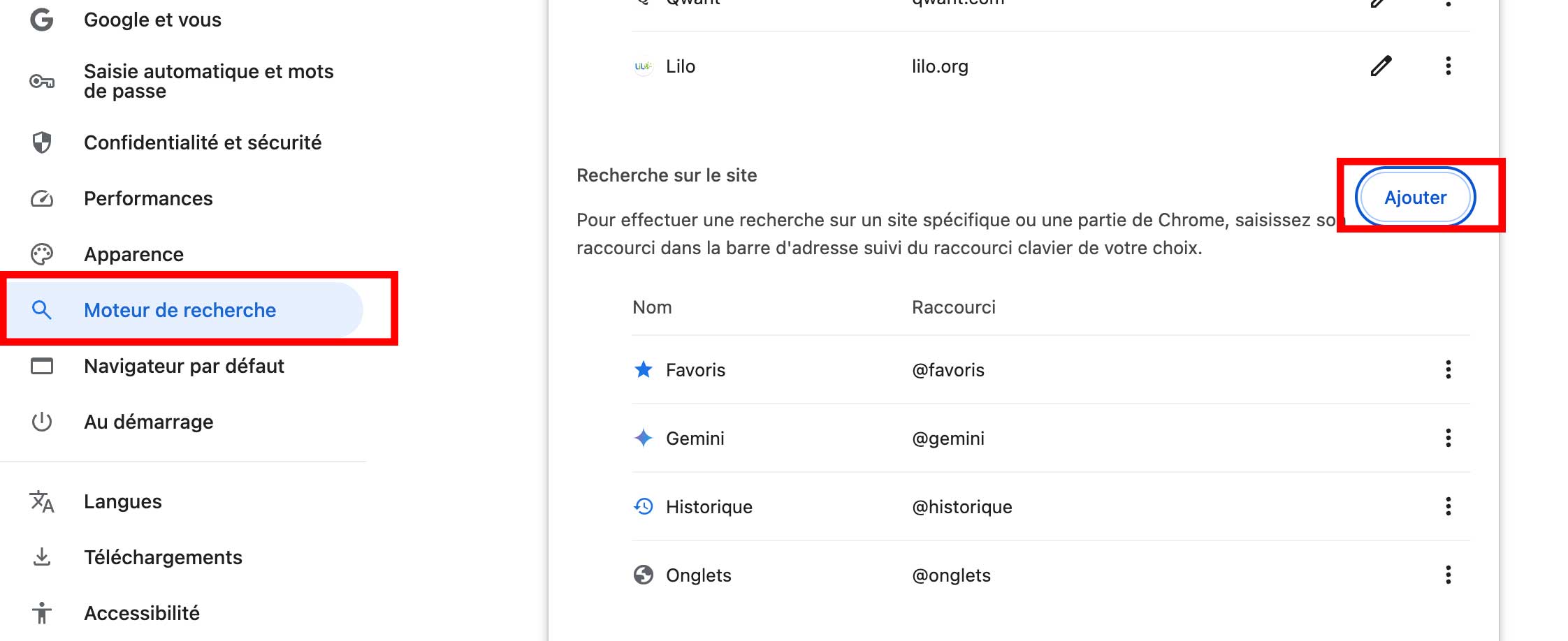
- Under “Site search”, click Add.
- Fill in:
- Name: “Google Web”
- Shortcut: “google.fr”
- URL:
https://www.google.com/search?udm=14&q=%s
- Click Add, then click the three dots next to the engine and select Set as default.
Result: Your searches in the address bar will display results without AI Overview.
3. Install a Chrome Extension (PC)
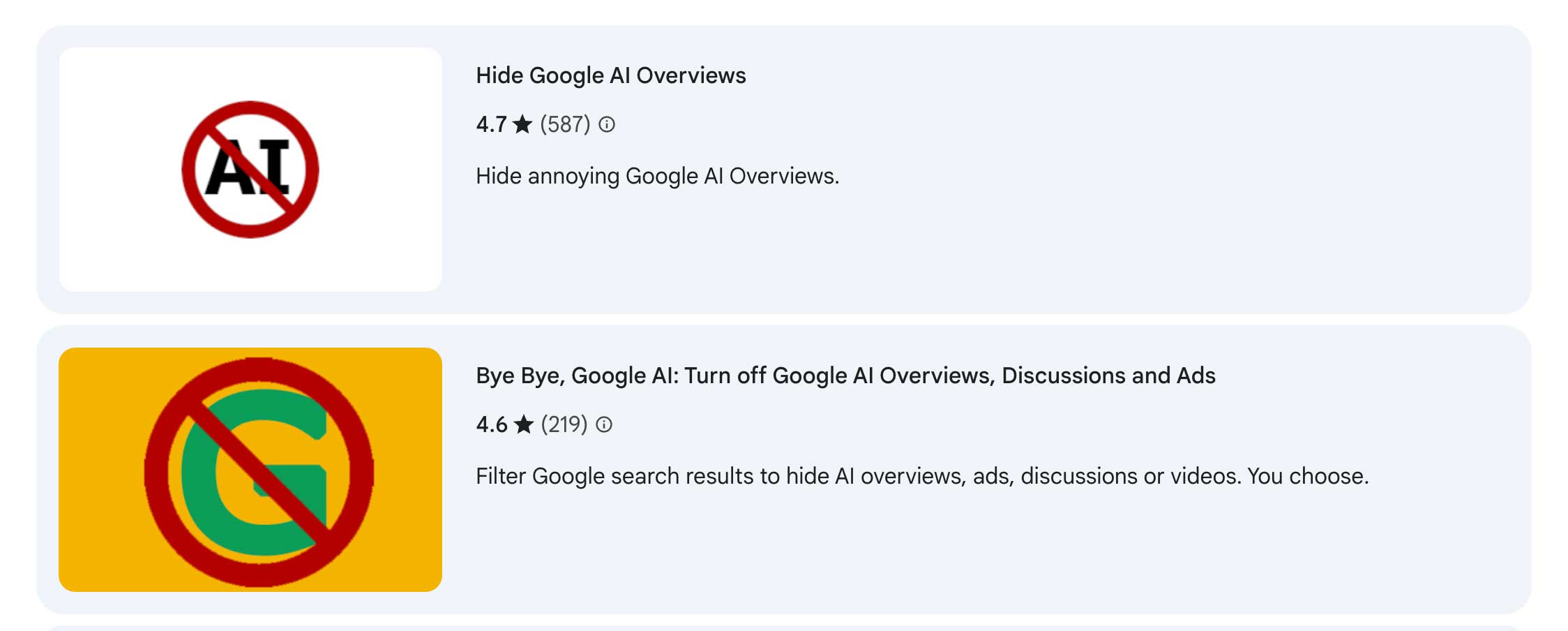
Free extensions automatically hide AI Overview. Here is how to proceed:
- Go to the Chrome Web Store.
- Search for one of these extensions:
- Hide Google AI Overviews: Simple and effective.
- Bye Bye, Google AI: Also removes ads and “People Also Ask”.
- Disable AI Overview: Targeted for AI Overview.
- Install the extension and activate it via the extensions icon.
- Do a search: AI Overview should be hidden.
4. Use Firefox with a custom engine (PC and Mobile)
Firefox allows you to bypass AI Overview on all devices.
- Install Firefox.
- Open Settings > Search > Default search engine.
- Click Add a search engine.
- Fill in:
- Name: “Google without AI”
- URL:
https://www.google.com/search?udm=14&q=%s
- Set this engine as the default.
Result: Your searches on Firefox will not display AI Overview, even on mobile.
5. Switch to a different search engine
For a permanent solution, try an alternative engine without AI:
- DuckDuckGo: Privacy-respecting, no AI.
- Bing: Classic interface, no AI summaries.
- Brave: Fast and no AI.
6. Disable AI Overview in Google Workspace (Enterprise)
For Google Workspace administrators:
- Log in to the Google Admin Console.
- Go to Smart features settings.
- Disable smart features or let users choose.
Which method to choose?
- On PC, for a quick solution: Install the Bye Bye, Google AI extension or set up
udm=14on Chrome. - On mobile: Use Firefox with a custom engine.
- For a permanent solution: Switch to DuckDuckGo.


